Pokeballs are the most important item in Pokemon Go. Obviously, you’ll need them to catch Pokemon. There are three different kinds of Pokeballs that you can find. The regular Pokeball is fairly ubiquitous but later levels allow you to unlock Great Balls, Master Balls, and Ultra Balls as well. Here is a short guide on how you can find them.

How do I unlock Great Balls, Master Balls, and Ultra Balls?

You’ll start the game with Pokeballs with more powerful balls unlocked later on. Here are the level caps for each one:
  • You start the game with Pokeballs unlocked.
  • You’ll unlock Great Balls at level 12.
  • Ultra Balls unlock at level 20.
  • Master Balls will be available starting at level 30.


How do I get Pokeballs?

The process of obtaining the various balls is actually very easy and you can get them several ways:
  • They drop most frequently at Pokestops. The odds of getting the higher level balls is slightly smaller than the standard Pokeball but they should all show up consistently. You’ll get at least one Pokeball pretty much every time you spin the wheel.
  • You’ll often get them as rewards for leveling up. We don’t recommend relying on this to stock them up for long-term use, but it is a nice bump when you get them.
  • You can buy Pokeballs from the in-game store using Pokecoins. You’ll get 20 Pokeballs for 100 coins, 100 balls for 460 coins, and 200 balls for 800 coins. Here’s a helpful guide on how to get free Pokecoins so you can buy them! Please note that you cannot buy Great Balls, Ultra Balls, or Master Balls this way.
It doesn’t sound like much, but some patience and good play will have your inventory full in no time!


Tips and Tricks for Pokeballs

Here are a few tips and tricks to help you maximize your potential with your Pokeballs:
  • Using Razz Berries can help you catch Pokemon using fewer throws. This can help extend your inventory and use fewer balls. Here’s a helpful guide on how to use (and where to find) Razz Berries!
  • There is a lot of anecdotal evidence that suggests that throwing curveballs or having good/great/excellent throws helps improve your capture rate. If true, this would also help extend your inventory by helping you catch Pokemon faster. We recommend you try using these types of throws. In the worst case scenario, you’re getting extra XP.
  • In most cities, areas such as parks tend to have a lot more Pokestops that are closer together than average. Check these kinds of landmarks if you’re criminally low on items. These havens can help boost your inventory quickly. Popular parks will also have people there that also may be tossing up Lures that you can play on as well.
  • Make sure you use the correct balls for the correct situations. Pokeballs are only so effective against Pokemon of a certain CP level. If you’re going up against something with over 1000CP, grab the Razz Berries and Ultra Balls. Similarly, don’t waste Ultra Balls on extremely low CP Pokemon.
  • Master Balls are a rare and wonderful resource. Save them for the toughest, rarest, and most desirable Pokemon! They don’t fall from trees which makes conservation extremely important.
Really, most of these tips and tricks are about proper item management and usage. We can show you how to get all the Pokeballs in the world (just hang out at Pokestops all day), but a good strategy on how to use them is just as valuable as having them to begin with!
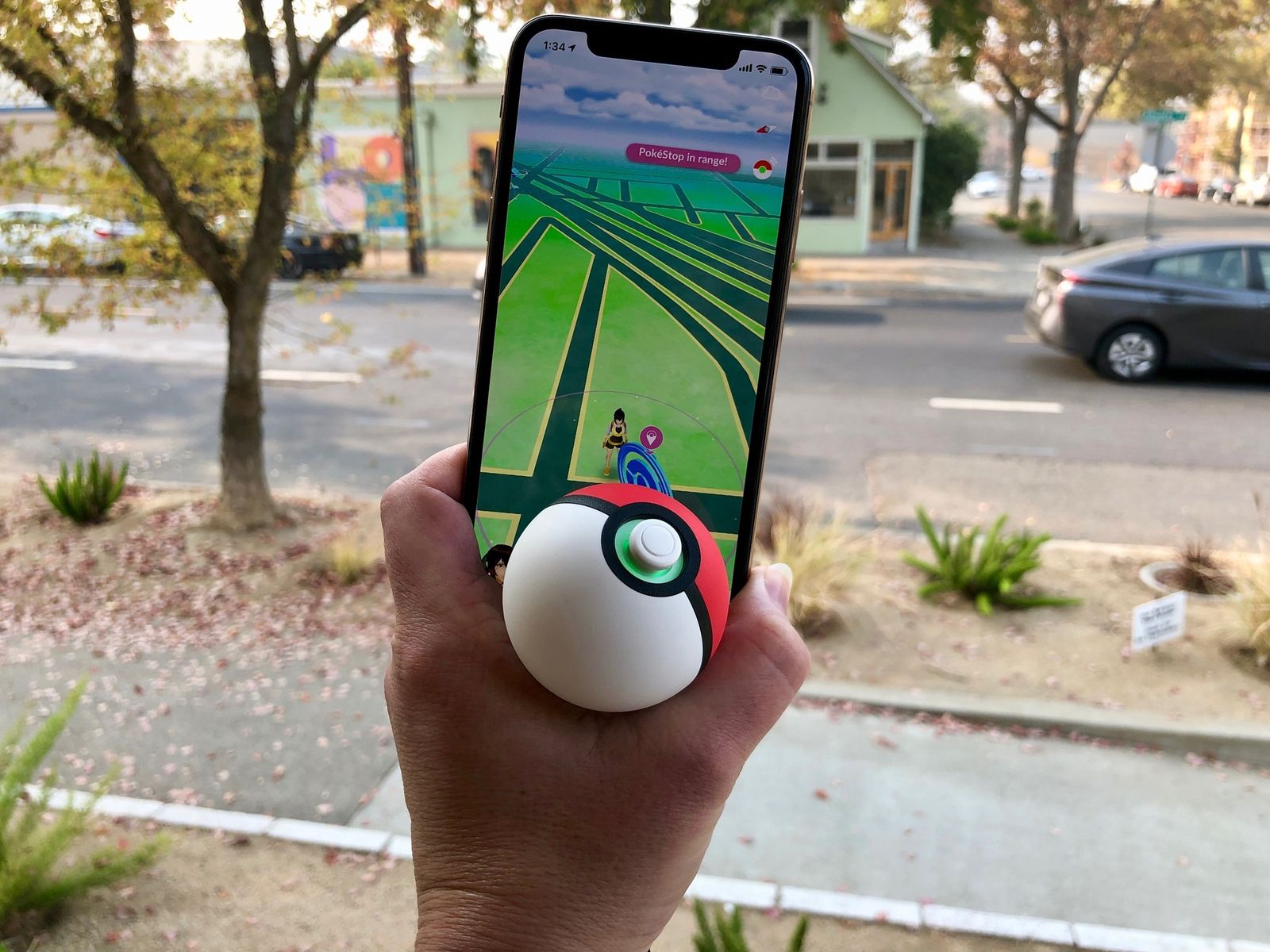
Similar to the Pokémon GO Plus wristband, the Poké Ball Plus can be used to help you catch 'em all in Pokémon GO on your iPhone and Android device. It's really easy to set up. You don't even have to open your Bluetooth settings. Here's how to connect your Poké Ball Plus to Pokémon GO on iPhone and Android.

How to connect your Poké Ball Plus to Pokémon GO

  1. Launch Pokémon GO on your phone.
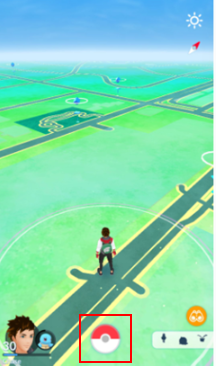
  2. Tap the Poké Ball on the screen.
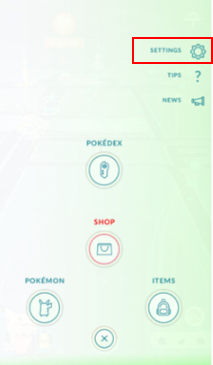
  3. Tap Settings.
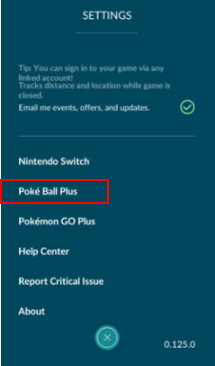
  4. Scroll down and tap Poké Ball Plus.
  5. Press the white button on your Poké Ball Plus.
    Tap the Poke Ball, then tap Settings then tap Poke Ball Plus
  6. Tap your Poké Ball Plus under Available Devices.
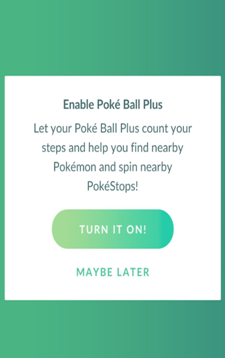
  7. Tap Turn It On! when prompted to confirm that you want to enable Poké Ball Plus.
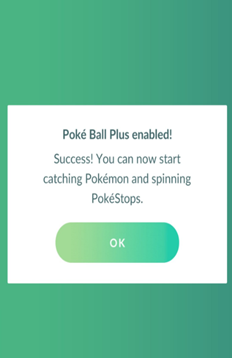
  8. Tap OK.
    Tap your Poke Ball Plus, then tap Turn It On, then tap OK
Once connected your Poké Ball Plus will automatically spin and collect nearby Poké Stop and you can press the white button when a Pokémon is nearby to attempt to catch it.
If you're having trouble getting your Poké Ball Plus to connect to Pokémon GO, check out our troubleshooting tips.

How to disconnect your Poké Ball Plus from Pokémon GO

If you didn't already know this, you can't have the Poké Ball Plus paired with two devices (like your iPhone and Nintendo Switch) at the same time. Luckily, it's easy to unpair your Poké Ball from Pokémon GO. Here's how.
  1. Launch Pokémon GO on your phone.
  2. Tap the Poké Ball icon in the upper right corner of the screen.
Tap the Poke Ball in the upper-right corner. The Poke Ball will dim when it's disconnected
When disconnected, the Poké Ball will dim.
How to connect your Poké Ball Plus to Pokémon GO on iPhone and ...

My Poké Ball Plus is not showing in the Settings menu in the Pokémon GO app
Poké Ball Plus is compatible with the Pokémon GO app version 0.37.0 or later. Please update the Pokémon GO app in the Apple App Store or Google Play and try again.
To check the version of Pokémon GO:
iOS:
  1. Go to the Apple App Store.
  2. Select Updates.
  3. Find Pokémon GO in the list of apps or search for Pokémon GO.
  4. The version number is displayed beneath the Pokémon GO icon.
Android:
  1. Go to Settings.
  2. Select Applications.
  3. Find Pokémon GO in the list of apps. 
  4. Tap on Pokémon GO. The version number is displayed at the bottom of the screen. 

My Poké Ball Plus won’t pair with my smartphone
  • Check that your smartphone meets the Poké Ball Plus system requirements and see the article, “How do I pair the Poké Ball Plus to my smartphone?”
  • Check with your smartphone's manufacturer and ensure your smartphone supports Bluetooth® and that it's enabled on your phone.
  • Check that your version of the Pokémon GO app is 0.37.0 or later.

My Poké Ball Plus doesn’t vibrate
Please check to see that your battery is charged. If it isn’t charged, please recharge the battery and try again. Please refer to the Poké Ball Plus Instruction Manual for more information.

Poké Ball Plus disconnected from my smartphone
There are a few reasons that may cause your Poké Ball Plus to disconnect from your smartphone:
  • Low battery
  • Distance between your Poké Ball Plus and smartphone is too far
  • Poor / blocked signal

How to Use Pokéball Plus with Pokemon GO App (Syncing with ...

Poké Ball Plus connects to your smartphone and provides an easy way to search for and catch Pokémon with the press of a button.
To learn how to pair your Poké Ball Plus to your smartphone, please see “How do I pair the Poké Ball Plus to my smartphone?” 
Once your Poké Ball Plus is paired to your smartphone, you’re ready to play. You’ll be able to collect items and catch Pokémon!
Catch Pokémon!
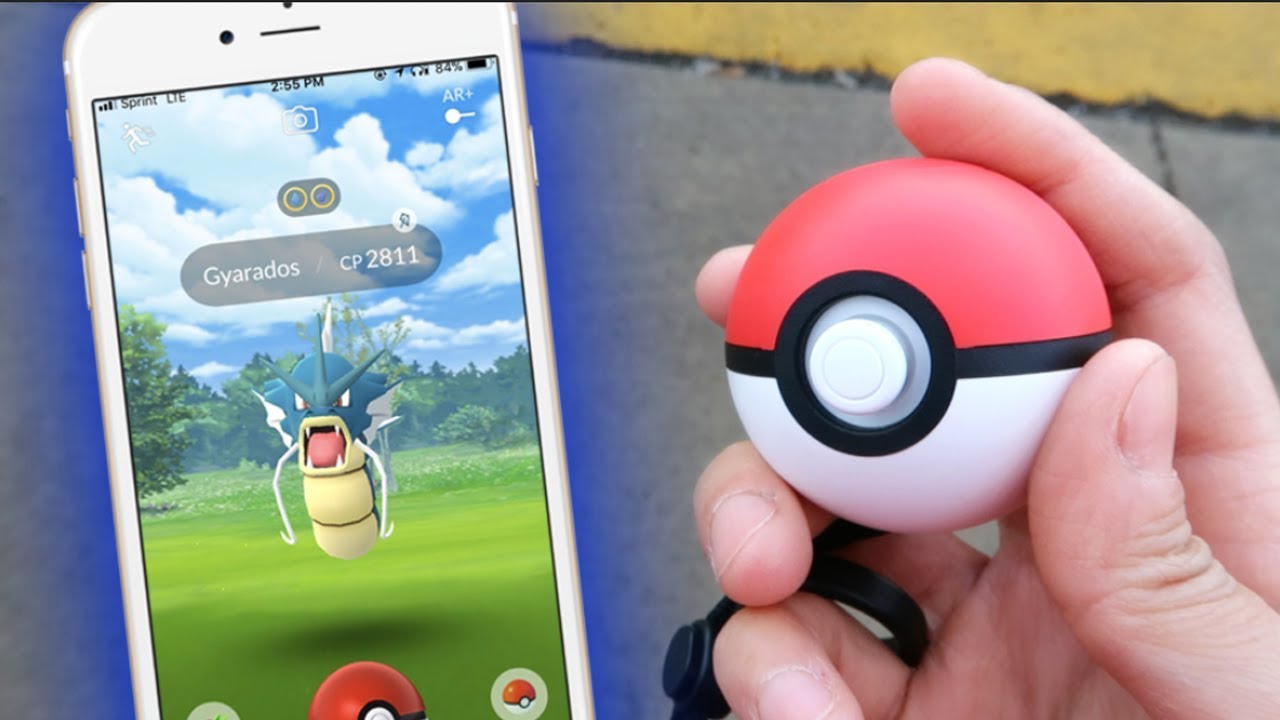
When a Pokémon appears nearby, the Poké Ball Plus will light up and vibrate. Press a button to throw a Poké Ball, and different LED light patterns will let you know if you’ve caught the Pokémon.
As long as your Poké Ball Plus is connected to your smartphone and the Pokémon GO app, it will also measure the distance you travel so you can hatch Eggs and get Candy for your Buddy Pokémon.
Collect Items from PokéStops!
When you get near a PokéStop, press the button on your Poké Ball Plus to spin the Photo Disc at a PokéStop and acquire items.
Frequently Asked Questions
Q. Are Lucky Eggs effective while using Poké Ball Plus in Pokémon GO?
A. Yes.
Q. Will my Poké Ball Plus react to Pokémon that appear due to a Lure Module in Pokémon GO?
A. Yes.
Q. Can I get a Gym Badge using Poké Ball Plus?
A. Yes, you can obtain a Gym Badge when you get items from spinning a Gym’s Photo Disc if you haven’t received it already.
Q. Can I get a Raid Pass from a Gym Photo Disc using Poké Ball Plus?
A. Yes, you can get a Raid Pass when you obtain items from the Gym if you haven’t already obtained a Raid Pass for the day.
Q. What happens when your Pokémon storage is full?
A. Poké Ball Plus will react, but you won’t be able to catch Pokémon.
Q. What happens when your Bag is full?
A. At a PokéStop, pressing the button will not spin the Photo Disc. You’ll need to use or discard items or upgrade your Bag to make space so you can obtain items and XP.
Q. Is there Raid Battle functionality with Poké Ball Plus?
A. No.


To catch Pokémon:
  1. The Poké Ball Plus will vibrate when Pokémon appear nearby.
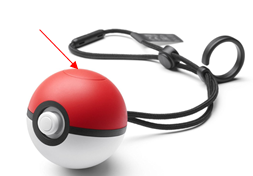
  2. Press the Top Button on the Poké Ball Plus.
  • If the Pokémon is caught, the message "XX was caught!" will display, and the Poké Ball Plus will vibrate.
  • If the Pokémon escapes, the message "XX ran away" will display, and the Poké Ball Plus will vibrate.
Please note: Only regular (red) Poké Balls are used when attempting a catch.

To obtain items from PokéStops:
  1. The Poké Ball Plus will vibrate when PokéStops and Gyms are nearby.
  2. Press the Top Button on the Poké Ball Plus to obtain items.

  • Items obtained will display on your screen.
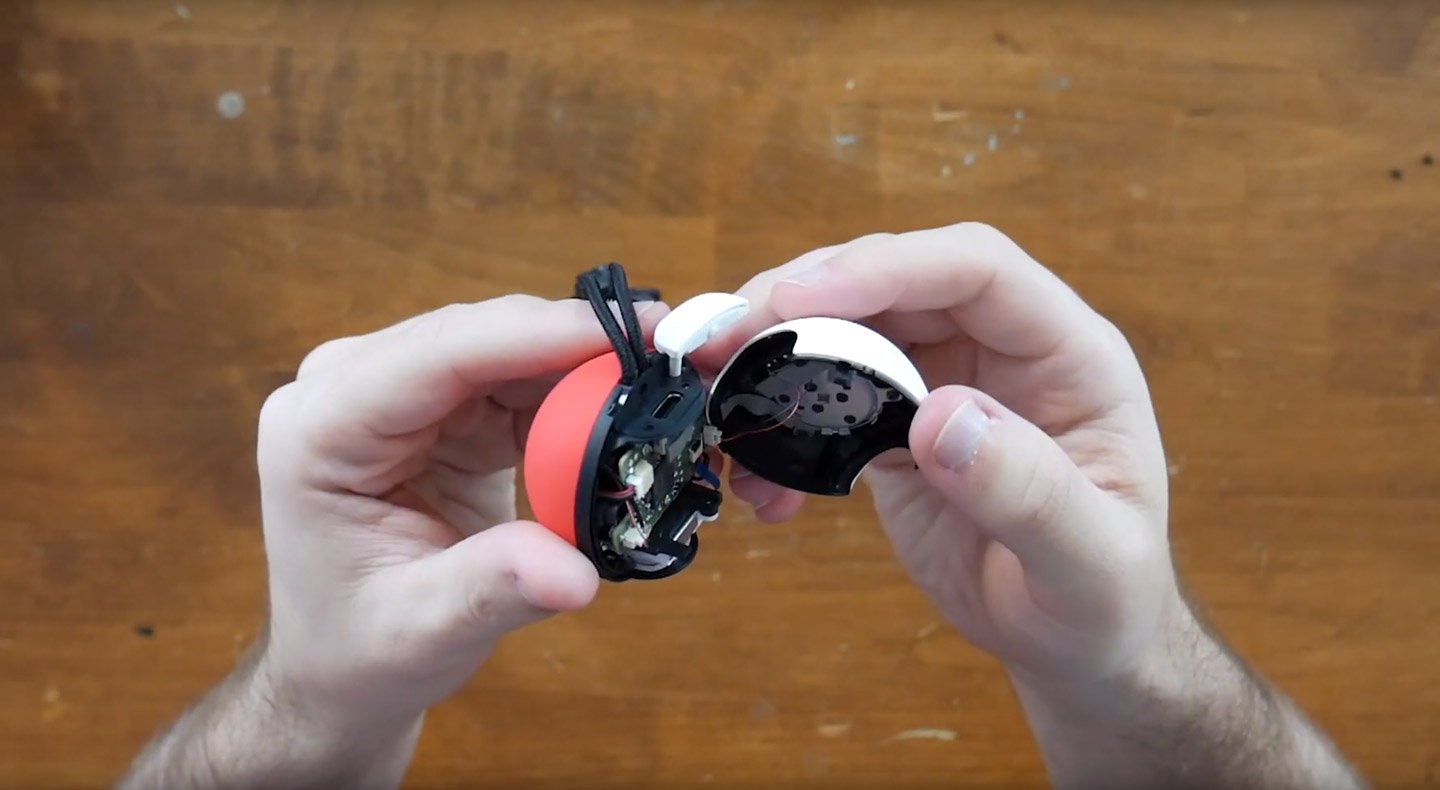
Poke Ball Plus teardown: is there really a Mew inside? | Pokemon ...

To stop your Poké Ball Plus from notifying you when Pokémon or PokéStops appear nearby, follow the steps below:
  1. From the Pokémon GO app, tap the Poké Ball icon at the bottom to open the main menu.
  2. At the top right, tap Settings.
  3. Scroll down and tap Poké Ball Plus.
  4. Under Notifications, uncheck Nearby Pokémon or Nearby PokéStop if you do not want the Poké Ball Plus to notify you when they are nearby.
Please note: If you turn off notifications/vibrations for the Poké Ball Plus, it will cease to automatically spin PokéStops.


How to Check the Remaining Battery Charge on Poké Ball Plus ...

The Poké Ball Plus comes with and uses a rechargeable battery. The battery can be charged using the USB charging cable that comes with the Poké Ball Plus. The battery is not removable.
To check the remaining battery charge on the Poké Ball Plus:
1. Make sure the Poké Ball Plus is not connected to another device, such as Nintendo Switch.
2. Press and hold down the Top Button and the Control Stick for at least five seconds. The light will flash a different color indicating the remaining battery charge.
  Green: battery charge remaining is high
  Yellow: battery charge remaining is medium
  Red: battery charge remaining is low
3. Press the Control Stick once to stop the light from flashing.
The Poké Ball Plus can be charged using the methods below.
  • Using the Nintendo Switch AC Adapter
  • Using the USB cable that came with the Poké Ball Plus and charging via the Nintendo Switch dock
  • Using the USB cable that came with the Poké Ball Plus and charging via Nintendo USB AC Adapter
It is possible to charge via a PC or mobile battery, but because of the number of OS and device combinations, it is not guaranteed.
Please note: The Poké Ball Plus will unpair automatically after one hour of being paired. Re-pair it with your device to begin using the Poké Ball Plus again.


PokéStops | Pokemon GO Wiki - GamePress

After pairing your Poké Ball Plus to your Pokémon GO app, the Poké Ball Plus should automatically vibrate as you approach PokéStops to indicate that the Photo Disc is automatically being spun and any items it has generated are being added to your bag.
This is automatic as long as your Poké Ball Plus is connected and active.
If your Poké Ball Plus is connected but you find that you are not automatically receiving items, please check the following:
  • If your bag is full, you will be unable to receive items from PokéStops. Use up items or discard items from your bag to free up space. 
  • If you have collected items from the PokéStop recently, it will cool down for a short period of time and you will need to wait before the PokéStop can be accessed again.
  • Your Poké Ball Plus comes with a Pokémon inside when new. If that Pokémon has been transferred from the Poké Ball Plus to the Nintendo Switch game Pokémon: Let’s Go, Pikachu! or Pokémon: Let’s Go, Eevee!, there will be no Pokémon inside the Poké Ball Plus and PokéStops will not automatically be spun.
If this is the case, follow the steps below to ensure a Pokémon is inside your Poké Ball Plus:
  1. Ensure that the Poké Ball Plus is not paired to Pokémon GO, and then launch Pokémon: Let’s Go, Pikachu! or Pokémon: Let’s Go, Eevee! from the Nintendo Switch HOME Menu.
  2. Press the X Button during gameplay to access the in-game menu.
  3. Select Save.
  4. Select Take your Pokémon for a stroll.
    • This option becomes available after you have battled your rival for the first time.
  5. When prompted, press the Control Stick or the Top Button on your Poké Ball Plus to connect it to the game. Once it's connected, press the Control Stick again to continue.
  6. Choose the Pokémon you want to take (“Partner Pokémon” or “Pokémon Box”) to copy it to the Poké Ball Plus.
    • Note that your Pokémon will still be available to use in the Nintendo Switch game while going for a stroll in the Poké Ball Plus.
    • While your Pokémon is in the Poké Ball Plus, you can take the Pokémon for a stroll. To play with your Pokémon, hold down the Control Stick until the Poké Ball Plus lights up, then shake the Poké Ball Plus.
  7. To return the Pokémon, repeat steps 2-6. Select Yes when asked if you would like your Pokémon to come back from a stroll.
    • Any experience or rewards earned while in the Poké Ball Plus will be granted to the Pokémon in the Nintendo Switch game.
Please Note:
  • One Pokémon at a time can be moved to the Poké Ball Plus.
  • Pokémon can be returned to the same game that they came from – they can’t be transferred to a different copy.
  • Only regular (red) Poké Balls are used when attempting a catch in Pokémon GO using the Poké Ball Plus.

Note: Bluetooth® must be enabled on your smartphone for the Poké Ball Plus to connect. Please refer to your smartphone’s user manual or below for details on enabling Bluetooth.
  1. Open the Pokémon GO app.
  2. On the main screen, tap the Poké Ball icon at the bottom to open the Main Menu.
  3. At the top right, tap Settings.
  4. Tap Poké Ball Plus.
  5. Press the top button of the Poké Ball Plus to make the accessory discoverable.
A dialog box asking you if you want to Enable Poke Ball Plus displays. Tap Turn It On!.
  1. Your Poké Ball Plus and game should connect.

    If successful, the Poké Ball Plus icon in the game will become brighter and pressing the top button on the Poké Ball Plus will cause it to vibrate.
If for some reason your Poké Ball Plus disconnects on its own, you can reconnect it by following the steps above. If disconnected, your Poké Ball Plus will flash a white light when pressed.
If you experience frequent disconnects, make sure your Poké Ball Plus is charged and consider restarting your smartphone.
If your smartphone is unable to connect to your Poké Ball Plus, you may need to pair using your smartphone’s Bluetooth settings.
On iOS devices:
  1. Open the Settings app and tap Bluetooth.
  2. Tap the Bluetooth toggle to turn Bluetooth on.
  3. Press the top button on the Poké Ball Plus to make the accessory discoverable.
  4. Tap Pokémon PBP (Poké Ball Plus) on the My Devices or Other Devices list.
  5. Open the Pokémon GO app.
  6. On the main screen, tap the Poké Ball icon at the bottom to open the Main Menu.
  7. At the top right, tap Settings.
  8. Tap Poké Ball Plus.
  9. Press the top button on the Poké Ball Plus to make the accessory discoverable.
  10. Tap your Poké Ball Plus on the Available Devices. It will vibrate when connected.
On Android devices (instructions may differ depending on device):
  1. Open your device’s Settings menu.
  2. Tap the Bluetooth toggle to turn Bluetooth on.
  3. Tap Search for devices, or Refresh to scan for nearby devices.
  4. Press the top button on the Poké Ball Plus to make the accessory discoverable.
  5. Tap Pokémon PBP (Poké Ball Plus) on the list of available devices.
  6. Open the Pokémon GO app.
  7. On the main screen, tap the Poké Ball icon at the bottom to open the Main Menu.
  8. At the top right, tap Settings.
  9. Tap Poké Ball Plus.
  10. Press the top button on the Poké Ball Plus to make the accessory discoverable.
  11. Tap your Poké Ball Plus on the Available Devices list. It will vibrate when connected.
Disconnecting your Poké Ball Plus from your smartphone:
  1. Open the Pokémon GO app.
  2. On the main screen, tap the Poké Ball Plus icon.
  3. The Poké Ball Plus icon will dim, indicating that it has been disconnected.
Adding a Pokemon to the Poke Ball Plus is simple, but the menu can be tricky to find. You'll find the option to add your Pokemon to a Poke Ball Plus in the save menu shown below.

Pokeball stroll 2.jpg

Select "Take your Pokemon for a stroll" in the save menu to initiate the process of adding a Pokemon to a Poke Ball Plus. Follow the directions to connect your Poke Ball Plus to the Switch.

Now it's time to choose the Pokemon you want to bring with you.

Pokeball stroll 4.jpg

The first option allows you to bring your Partner Pokemon -- the Pikachu or Eevee. The second option allows you to bring a Pokemon from your Pokemon Box. Select the option you need and then your chosen Pokemon will be sent to the Poke Ball Plus.

Return your Pokemon back to Pokemon: Let's Go by going to the save menu and hitting the "Take your Pokemon for a stroll" option again. This time when you connect your Poke Ball Plus to the Switch, it'll give you the option to bring back the Pokemon in the Poke Ball Plus.


You have a special mythical Pokemon waiting for you if you purchased a new Poke Ball Plus. All Poke Ball Plus only come with one Mew, so if you're sharing, you'll need to choose who get's the Mew.

To get the Mew, follow the above steps to connect the Poke Ball Plus to your Switch. Then, open the Menu and go to Communicate then select the icon for Mystery Gifts

Pokeball mew 3.jpg

Normally, the Mystery Gifts menu only shows three options. If your Poke Ball Plus is connected, it'll show a new option allowing you to get a gift from the Poke Ball Plus. Select that to redeem your Mew.

Plus004.jpg

The Mew comes at Lv. 1 with random stats (this will only show if you've earned the Judge feature). It will only know the move Pound.

Plus006.jpg


Take care of Mew!


When you first open Pokemon: Let's Go, you're given the option to choose one of four controller setups. You can also access this menu by going to the options and hitting "Open Controller Settings." This will be the second option below "Open Pokemon GO Settings."

Plus001.jpg

To choose the Poke Ball Plus, you'll need to have your Poke Ball Plus ready. Hit any button and wait for it to connect to the Switch. Once it's successfully connected, you'll see this screen:

Plus002.jpg

Press the control stick to confirm using the Poke Ball Plus as the controller.

How to Press "X" with the Poke Ball Plus
The Poke Ball Plus may only have two real buttons, but don't forget that shaking the Poke Ball Plus acts as a button as well.

Generally, the top button with back out of or quit a menu you're in. If you're in a menu and need to press "X," try shaking the Poke Ball Plus to see if it solves your problem.

It's also possibly to keep a Joy-Con with you to press the X and Y buttons as needed. We don't recommend using the Poke Ball Plus when doing any sort of inventory or Pokemon management in the menus.


You must have Pokémon Go open in the background to use the Poké Ball Plus. You don’t have to be actively playing the game, however. Instead, the device uses a series of lights to alert players to what’s going on in the game.
Poké Ball Plus with yellow lightThe Pokémon Company/Nintendo
These are the lights to look for and what they mean when it comes to catching a Pokémon:
  • Three green lights: already owned nearby Pokémon; press the top button to capture
  • Three yellow lights: new nearby Pokémon; press the top button to capture
  • Up to three white lights: wild battle in progress
  • Three red lights: Pokémon ran away
  • Multi-colored lights: Pokémon captured
These lights show up for PokéStops:
  • Two blue lights: spin a nearby PokéStop
  • One red light: unable to spin
  • Multi-colored lights: items collected from PokéStop

MUTING THE POKÉ BALL PLUS

You can’t mute the Poké Ball Plus’ sounds or disable its vibrations when playing Let’s Go!, but you can mute it when it’s connected to Pokémon Go. To do this, you have to hold the top button and control stick button at the same time. It will vibrate to indicate that the action was successful. Follow these same steps again to unmute it.
The Poké Ball Plus is perhaps more useful for Pokémon Go users, presuming they can get it to work properly.
Pairing the Poké Ball Plus with your smartphone may take some trial and error. With Bluetooth enabled, enter the main menu on Pokémon Go. From there, go into the Settings menu. You’ll see an option for Poké Ball Plus.
With your Poké Ball Plus in hand, click in the button on top of the accessory. This will allow your phone to find it. Then click the Poké Ball Plus option to initiate a pop-up that will ask to enable the Poké Ball Plus. The Poké Ball Plus icon on the main gameplay overworld will then illuminate to confirm that the game and device are paired.

Poké Ball Plus icon in Pokémon Go
That Poké Ball in the upper right-hand corner will light up when the device is connected.
 Niantic/The Pokémon Company via Polygon

You may require additional troubleshooting, especially if your accessory is constantly disconnecting from the game (which was our experience). This is what the Pokémon Go support site recommends:
On iOS devices:
Open the Settings app and tap Bluetooth.
Tap the Bluetooth toggle to turn Bluetooth on.
Press the top button on the Poké Ball Plus to make the accessory discoverable.
Tap Pokémon PBP (Poké Ball Plus) on the My Devices or Other Devices list.
Open the Pokémon GO app.
On the main screen, tap the Poké Ball icon at the bottom to open the Main Menu.
At the top right, tap Settings.
Tap Poké Ball Plus.
Press the top button on the Poké Ball Plus to make the accessory discoverable.
Tap your Poké Ball Plus on the Available Devices. It will vibrate when connected.
On Android devices (instructions may differ depending on device):
Open your device’s Settings menu.
Tap the Bluetooth toggle to turn Bluetooth on.
Tap Search for devices, or Refresh to scan for nearby devices.
Press the top button on the Poké Ball Plus to make the accessory discoverable.
Tap Pokémon PBP (Poké Ball Plus) on the list of available devices.
Open the Pokémon GO app.
On the main screen, tap the Poké Ball icon at the bottom to open the Main Menu.
At the top right, tap Settings.
Tap Poké Ball Plus.
Press the top button on the Poké Ball Plus to make the accessory discoverable.
Tap your Poké Ball Plus on the Available Devices list. It will vibrate when connected.
From there, you can start catching Pokémon and collecting items.
From there, you can start playing the game with the Poké Ball as your controller. That’s neither our favorite nor recommended option, but if you’d like to actually swing a Poké Ball toward the screen when facing down a wild Pokémon, this is how you do it.
Note that there are only two buttons on the Poké Ball Plus, which limits your access to several functions that you can get to with the Joy-Con. The center button is both the joystick and the A button; there’s a button on the top that serves as the B button.
To select options generally mapped to the Y button, shake the device.
The Poké Ball Plus, detailed.
 The Pokémon Company
You can also use the Poké Ball Plus to trade Pokémon from Go to Let’s Go!